Activity Summary PCF Control
Published: February 2026 | Author: Kokulan Eswaranathan
Introduction
As Power Platform developers, we often need to display activity information on model-driven forms in a clear, actionable way. While Dataverse provides a Timeline control, sometimes you need a more focused, customizable view that gives users immediate insights into their activities at a glance.
That’s why I developed the Activity Summary PCF Control – a comprehensive, fully customizable Power Apps Component Framework (PCF) control that displays activity metrics and details in an intuitive card-based interface. Today, I’m excited to share it with the community and walk you through its features, use cases, and how to get started.
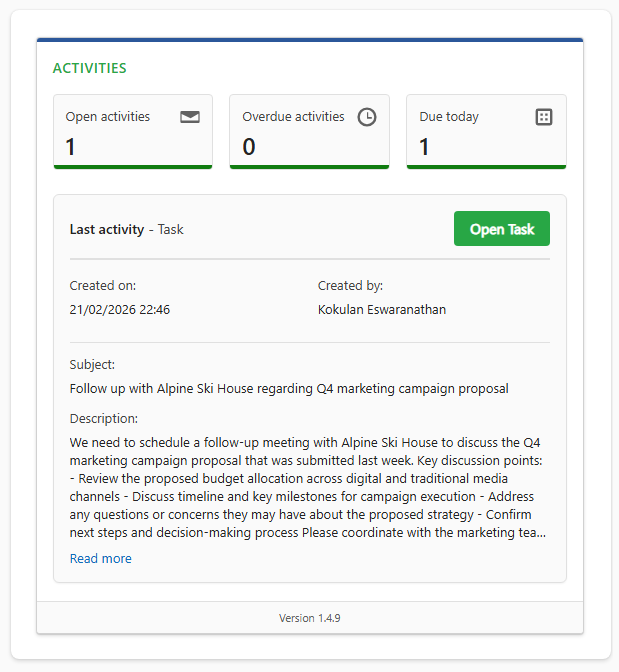
The Activity Summary control displaying activity metrics and last activity details on an Account form
What is the Activity Summary Control?
The Activity Summary control is a custom PCF control designed for Power Apps model-driven forms. It provides a comprehensive view of all activities associated with the current record through an elegant, card-based interface. Whether you’re working with Accounts, Contacts, Opportunities, or custom entities, this control gives you real-time activity insights without leaving the form.
Key Features at a Glance
✅ Activity Metrics Dashboard
- Total activities count
- Open activities count
- Overdue activities tracking
- Due date filters (today, this week, this month, this year)
✅ Last Activity Details
- Most recently modified activity with full details
- Expandable description (configurable)
- HTML rendering for email content
- Quick navigation to activity records
✅ Complete Customization
- 40+ configurable properties
- Custom colors, labels, and visibility controls
- Activity type filtering
- Theme support (light and dark)
✅ Performance Optimized
- Efficient Web API queries
- Parallel execution for fast loading
- Smart caching mechanisms
Why I Built This Control
During my work with Power Platform implementations, I noticed a common pattern: users needed quick visibility into activity statuses without navigating away from the record they were viewing. The built-in Timeline control is excellent, but sometimes you need:
- At-a-glance metrics – How many activities are open? Are any overdue?
- Focused views – Show only Tasks, or only Emails
- Custom branding – Match your organization’s color scheme
- Flexible layouts – Show or hide sections based on your needs
The Activity Summary control addresses all these requirements while maintaining excellent performance and a clean, modern UI.
Real-World Use Cases
1. Account Management Dashboard
Scenario: Sales teams need to quickly see all activities related to an account, with special attention to overdue items.
Configuration:
- Enable all tiles including overdue tracking
- Show due date filters (today, week, month)
- Display full last activity details
- Use professional blue color scheme matching your brand
Result: Sales reps can immediately see which accounts need attention and what the last interaction was.
2. Task Management Focus
Scenario: Project managers want to focus only on Tasks for a specific record.
Configuration:
- Filter to Tasks only (
includedActivityTypes: 4212) - Show overdue and due date tiles prominently
- Display last Task with full details
- Compact description view (3-4 lines)
Result: A clean, focused view of all tasks without email or phone call noise.
3. Customer Service View
Scenario: Support teams need to see all communication activities (Email, Phone, Teams) for a customer.
Configuration:
- Filter to communication types (
includedActivityTypes: 4201,4207,4251) - Show open activities prominently
- Display last communication with full description
- Enable modified date/user to track updates
Result: Support agents can quickly see the communication history and the most recent interaction.
4. Executive Summary
Scenario: Executives need a high-level overview with minimal details.
Configuration:
- Show only total and open activities
- Hide due date filters
- Show last activity type and subject only
- Hide description and metadata
- Compact card design
Result: A clean, minimal view perfect for dashboards and executive reports.
Installation Made Simple
Option 1: Install from Managed Solution (Recommended)
The easiest way to get started is to install the pre-built managed solution:
- Download the managed solution:
- Visit the GitHub Releases page
- Download
ActivitySummary-v1.4.9-Managed.zipfrom the latest release
- Import to Dataverse:
- Go to https://make.powerapps.com
- Navigate to Solutions → Import
- Select the downloaded ZIP file
- Follow the import wizard
- Important: Don’t forget to publish all customizations!
- Add to Your Form:
- Open any model-driven form (Account, Contact, Opportunity, etc.)
- Edit the form
- Click + Add component
- Under Custom, find Activity Summary
- Drag it onto the form
- Configure properties (optional – it works great with defaults!)
- Save and Publish
That’s it! The control works out of the box with sensible defaults.
Option 2: Build from Source
If you prefer to build from source or customize the code:
# Install Power Platform CLInpm install -g @microsoft/powerplatform-cli# Clone the repositorygit clone https://github.com/Kokulan365/activity-summary-pcf.gitcd activity-summary-pcf/ActivitySummary# Install dependenciesnpm install# Build the controlnpm run build# Create solution and importpac solution init --publisher-name "Your Name" --publisher-prefix "yourprefix"pac solution add-reference --path "./ActivitySummary"pac solution buildpac solution import --path "bin/Debug/Solution1.zip"
Customization Examples
One of the strengths of this control is its extensive customization options. Here are some practical examples:
Example 1: Match Your Brand Colors
bannerColor: #0078D4 // Microsoft blue bannertileFooterColor: #107C10 // Green accent barscardTitleLabel: Activity DashboardbuttonBackgroundColor: #107C10
Example 2: Tasks-Only View
showTileSection: YesshowTotalActivities: YesshowOpenActivities: YesshowOverdueActivities: YesshowDueToday: YesincludedActivityTypes: 4212 // Tasks onlyshowLastActivitySection: YeslastActivityTypeFilter: 4212 // Last Task onlymaxDescriptionLines: 5
Example 3: Compact View
showCardTitle: NoshowTileSection: YesshowTotalActivities: YesshowOpenActivities: YesshowOverdueActivities: NoshowDueToday: NoshowTileIcons: NoshowLastActivitySection: YesmaxDescriptionLines: 3
Technical Highlights
Architecture
- Framework: React 18.2.0 with TypeScript
- Build Tool: Webpack (via pcf-scripts)
- API: Dataverse Web API v9.2
- Styling: CSS with CSS variables for seamless theme support
Performance Optimizations
The control is built with performance in mind:
- Parallel Execution: All count queries run simultaneously using
Promise.all() - Efficient Counting: Uses
$count=truewhen possible to minimize data transfer - Minimal Fields: Only retrieves necessary fields with
$select - Smart Filtering: Client-side filtering when activity type codes are specified
- Caching: Results cached until record ID or filters change
Activity Type Support
The control supports all standard Dataverse activity types:
| Code | Entity Name | Display Name |
|---|---|---|
| 4201 | ||
| 4207 | phonecall | Phone Call |
| 4210 | appointment | Appointment |
| 4212 | task | Task |
| 4214 | recurringappointmentmaster | Recurring Appointment |
| 4251 | msdyn_ocliveworkitem | Teams Chat |
You can filter activities by type codes, or leave empty to show all types.
Common Configuration Scenarios
Scenario: Show Only Overdue Tasks
showTotalActivities: YesshowOpenActivities: YesshowOverdueActivities: YesshowDueToday: NoshowDueThisWeek: NoshowDueThisMonth: NoshowDueThisYear: NoincludedActivityTypes: 4212showLastActivitySection: YeslastActivityTypeFilter: 4212
Scenario: Communication Activities Dashboard
showTileSection: YesshowTotalActivities: YesshowOpenActivities: YesshowOverdueActivities: YesincludedActivityTypes: 4201,4207,4251 // Email, Phone, TeamsshowLastActivitySection: YesshowModifiedOn: YesshowModifiedBy: YesmaxDescriptionLines: 10
Troubleshooting Tips
Control Not Loading
- Verify the solution is imported and published
- Check browser console (F12) for JavaScript errors
- Ensure the form is published after adding the control
- Clear browser cache and reload
No Data Showing
- Verify the record has activities (check Timeline view)
- Check browser console for API errors
- Verify Web API permissions (user needs Read permission on Activity Pointer)
- Check
includedActivityTypesfilter – may be filtering out all activities
Styling Issues
- Clear browser cache completely
- Verify hex color format (must be
#RRGGBB) - Test in different browsers (Edge, Chrome)
What’s Next?
The Activity Summary control is now available as an open-source project on GitHub. I’m actively maintaining it and welcome contributions from the community.
Get Involved
- Try it out: Download from GitHub Releases
- Report issues: Open an issue on GitHub
- Suggest features: Have an idea? Create a feature request
- Contribute: Fork the repo and submit pull requests
Resources
- GitHub Repository: github.com/Kokulan365/activity-summary-pcf
- Full Documentation: See the README.md in the repository
- PCF Gallery: Coming soon! (Submit to pcf.gallery)
Conclusion
The Activity Summary PCF control fills a gap in the Power Platform ecosystem by providing a flexible, performant, and highly customizable way to display activity information on model-driven forms. Whether you need a simple activity counter or a comprehensive dashboard, this control can be configured to meet your exact requirements.
I hope this control helps you build better Power Apps experiences. If you use it in your projects, I’d love to hear about your use cases and see how you’ve customized it!
Happy coding! 🚀
 Kokulan's Blog
You must be logged in to post a comment.